Owner’s manual / KC Love Ring
The complete guide.
KC Love Ring + Companion HUD for Second Life. Start here · The Ring · The Companion HUD · How they work together · Walkthroughs · Technical reference.
A partner ring for Second Life. Not a collar. Not a leash-club. A ring.
The 30-second version
| The Ring | The Companion HUD | |
|---|---|---|
| What it is | The brain. Worn on your finger. Holds your friend list, permissions, and all the features. | A quick-action remote for one partner at a time. |
| Best for | Managing everyone, setting rules, the full menu | Tapping a button while you’re actually with someone |
| Stores | Friend list, permissions, rez days, hold positions, last partner | Almost nothing — just its own look & settings |
| Works alone? | Yes. Every feature works with no HUD. | No. It talks to the ring, so it needs one. |
The ring is the boss. The HUD is just a very fast messenger. Take the HUD off and nothing in the ring breaks.
The big picture
| Connection | How it travels |
|---|---|
| Your worn HUD ↔ KC-Bridge | Private channel -7391250 inside your own setup. |
| KC-Bridge ↔ ring scripts | Link messages reach RingCore, FriendTP, HoldHand, FriendStatus, SitWMe and Wearing. |
| Your ring ↔ friend’s ring | Ring-to-ring channels -8765432 and -7654321. |
Three conversations are happening, and each one is locked down:
- HUD ↔ your ring — only you can talk to your own ring. A rezzed stranger-object can’t hear the replies; the HUD has to be worn.
- Your ring ↔ their ring — every message is checked: “is the sender an object really owned by the avatar it claims to be?” (spoofers get ignored).
- Their ring has the final say. You ask, their ring decides, and if it says no you get a clear message back: “Ivy Moonvale’s ring says no — they haven’t switched that on for you.”
Part 1
The Ring
1.1 Opening the menu
| You type | You get |
|---|---|
/7 <ini>menu | Main menu |
/7 <ini>sit | Sit With Me, skipping the menu |
/7 <ini>wearing | Wearing? scanner |
/7 <ini>holdhand | Hold Hand menu |
/7 <ini>friends | Online/offline list in local chat |
<ini> = first two letters of your first name, lowercase. Tara → ta, Ivy Moonvale → iv, Jesse → je. (So /7 tamenu for Tara. Yes, it’s that easy. No, you don’t need to memorize anything else.)
1.2 The main menu, button by button
| Button | What it does (plain English) |
|---|---|
| Lock Ring / Unlock Ring | Uses RLV to stop the ring from being detached. The label flips to show the action you’d take. Survives relogs — it re-locks itself ~5s after you log in. |
| Add Friend | Paste a friend’s UUID. The ring looks up their name for you. |
| Friends | Your friends list → tap a name → their Friend Panel (see 1.3). |
| Sit With Me | Lists friends within 96 m → tap one → their ring shows furniture → they sit. |
| Wearing? | Pick any avatar within 96 m → get a list of everything they wear, with clickable creator links. |
| Tracker | Online-notification settings (Popup / Message). |
| Help | Versions (every script reports its version) · Help File (notecard). |
| Close | Closes the menu. The ring keeps running. |
1.3 The Friend Panel — one stop per friend
Main Menu → Friends → [name]
| Button | Meaning |
|---|---|
| Grab Hand | YOU lead, THEY follow. Instant. No sub-menu. |
| Hold Hand | YOU follow, THEY lead. Instant. |
| Let Go | Ends any active hold. Safe to tap even if nothing’s active. |
| Sit With Me | Opens furniture list for them. |
| Set Position | Where they walk relative to you: Directly Behind · Beside Right · Beside Left · In Front |
| Settings | Jumps straight to this friend’s permission switches (next section). |
Action buttons always show. They’re things you do to them, so their ring decides. If it says no, you get told why — no mystery silence.
1.4 Permissions — the “give it once” system
Friends → [name] → Settings
Every friend gets their own switches on your ring. They control what that friend is allowed to do to you.
| Switch | If ON, they can… |
|---|---|
| Auto TP | Teleport you to them — your ring auto-accepts their offers |
| Auto TPMe | Request a teleport — your ring auto-answers their requests |
| Sit With Me | Sit you on furniture |
| Tracking | (You’ll be notified when they come online/offline) |
| Hold Hands | Hold your hand — works both directions (lead you or follow you). One toggle. |
| Suspend | Pause everything above without losing the settings |
Once that right is set, it stays. That is the ONLY permission needed. No popups. No “are you sure?” boxes. You give it ONCE.
1.5 Hold Hand — the star of the show
The 60-second walkthrough
| Step | Ring-to-ring walkthrough |
|---|---|
| 1 / Request | Tara selects Grab Hand for Ivy Moonvale. Tara’s ring sends HH_REQUEST (follow me). |
| 2 / Check | Ivy Moonvale’s ring checks the friend entry, Hold Hands permission and whether it is suspended. |
| 3 / Accept | Ivy Moonvale’s ring sends HH_ACCEPTED. Tara sees “Leading Ivy Moonvale” and Ivy Moonvale sees “Tara is leading — holding hands!” |
| 4 / Walk | Leader sends HH_POS once a second. Follower sends HH_ALIVE every five seconds. |
| 5 / Release | Tara taps Let Go. Her ring sends HH_RELEASED and Ivy Moonvale sees “Tara let go of your hand.” |
The fine print (the good kind)
- Smooth physics. The follower is gently pulled to an anchor spot — no jerky teleport-snapping.
- Either person can TP away at any time. This is a partner ring, not a control system.
- Dead-leader safety: if the leader crashes/logs/TPs out, the follower auto-releases after ~10 seconds. Nobody gets stuck.
- Too far away? Follower ignores anchors >20 m away; two in a row = auto-release.
- Region change = auto-release.
- Remembers positions per friend. Ivy Moonvale always walks beside your right if that’s what you picked.
- Swap directions cleanly. Tap the opposite button with the same partner and it flips — no blocking.
- One leader, one follower. On purpose.
1.6 The Tracker
Polls Second Life every ~25 seconds for each friend with Tracking ON.
| Feature | Detail |
|---|---|
| Message | 3-line banner in local chat (ON by default) |
| Popup | Dialog box with OK (OFF by default) |
| Silent first poll | No spam when you log in. Then you get a status list once it finishes: [online] online / [offline] offline (last seen 3h ago) |
| Rez-day reminders | 7 days before, and on the day |
| Sound | Optional. Upload a chime, name it exactly kt_notify, drop it in the ring. Delete it to mute. |
SL limit, not a bug: online status only works for people on your actual SL friends list with “can see when I’m online” enabled.
1.7 Lock, update, the other stuff
| Lock | RLV @detach=n. State is saved and re-applied on login. |
| Wireless updater | Separate box/HUD owned by you. Touch → Update. One-time random PIN, 120 s window, same-owner only. Pushes all scripts while the ring stays on your finger. Friends & settings survive untouched. |
| Update check | After an update the ring prints a report: which scripts changed, which are unchanged (green = healthy). |
| Owner transfer | New owner? Friend list and every kt_ setting is wiped automatically. Clean slate. |
| No-script parcels | The ring asks for zero movement controls, so it keeps running where scripts are restricted. |
Part 2
The Companion HUD
2.1 The idea
The ring manages everyone. The HUD is for the person you’re with right now.
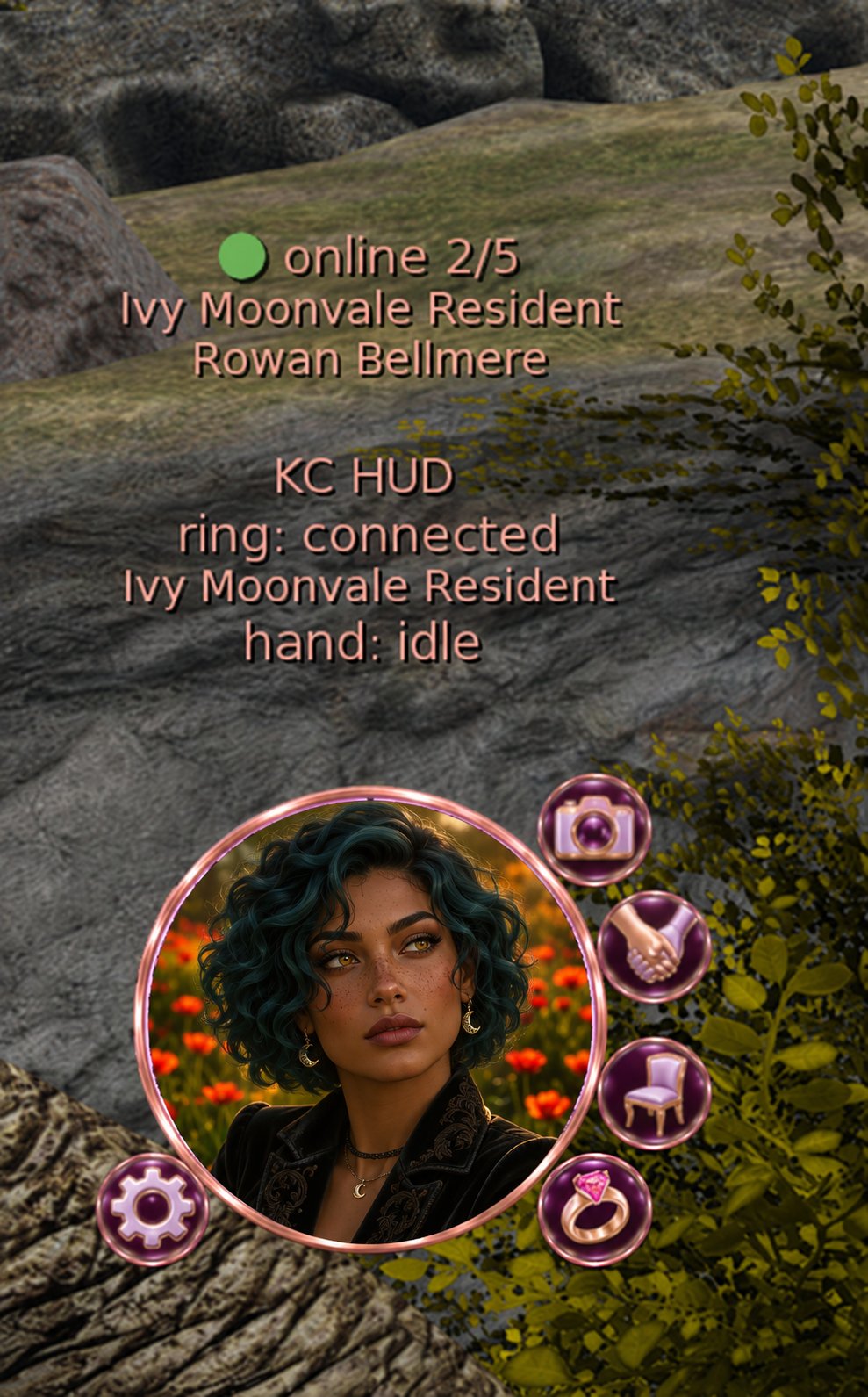
- Center circle = your partner’s SL profile photo, with a green/red online indicator.
- Orbit buttons = one-tap shortcuts. They always act on the partner already picked. They never ask “who?” (the one exception: if nobody is picked yet, it opens the picker first, then does what you tapped).
- The HUD remembers your partner — saved on the ring, so after a relog the photo and target come right back.
- If Linden’s web server has a bad day (HTTP 502), it retries 3× and keeps showing the last good photo. Your partner doesn’t turn into a blank circle because SL sneezed.
2.2 The orbit buttons
| Prim name | Button | Tap to… |
|---|---|---|
KC_Hold | Hold Hand | Opens a small adaptive box (below) |
KC_Sit | Sit With Me | Starts Sit With Me to your partner |
KC_Cam | Cam Share | Opens the camera menu |
KC_Settings | Settings | HUD’s own settings |
KC_RingMenu | Ring Menu | Pops open the ring’s main menu — the HUD’s door back to the big menu |
The adaptive Hold Hand box
It changes depending on whether you’re already holding hands:
Position → Behind · Right Side · Left Side · In Front (current one is ticked). Position is the leader’s choice; if you’re leading, it applies instantly.
Cam Share
Share your camera view with your partner so they see what you see.
| Button | Does |
|---|---|
| Share My Cam | Sends your current camera to your partner |
| Last Known Share | Re-applies the last view you received |
| Release Cam | Gives their camera back to them |
| Close | Closes the menu |
Both people need the HUD (with KC-CamShare) and RLV on for the view to apply. Adapted from the KithCart HUD cam-share script — same camera math, but locked to one partner.
2.3 The center circle
| Situation | Tap the center → |
|---|---|
| No partner yet | Friend picker (nearby friends) |
| Partner picked | The “More” menu |
| More-menu button | Plain English |
|---|---|
| Pick Partner | Choose who the buttons act on |
| Clear Partner | Forget them (and their cached photo) |
| Who’s On | Which of your friends are online right now |
| Is Partner On? | Is your partner online? |
| What Can I Do? | What their ring currently lets you do (teleport / sit / track / hold hands) |
| Hand Status | Are you holding hands right now? |
Switching partners takes a tap on the center + a pick on purpose — so a stray tap never swaps your person.
2.4 HUD settings
Saved on the HUD itself — they’re few and not friend-specific.
| Setting | Options |
|---|---|
| Names 🟢/🔴 | Show online friends’ names in the floating text |
| Text 🟢/🔴 | Show the floating text at all |
| Refresh | 30 / 60 / 120 / 300 s — faster = a bit more work for the ring |
| Color… | Hover-text color: Rose Gold · Pink · Lavender · White · Gold · Mint · Sky · Coral |
| Lock HUD 🟢/🔴 | RLV-locks the HUD itself so it can’t be removed |
| Save Image | Saves the HUD’s current art as its normal look (clear your partner first so it saves the badge, not their face) |
Legend: 🟢 = on · 🔴 = off. (No “ON/OFF” words — the dots say it.)
Part 3
How the ring and HUD work together
3.1 One tap, end to end
“I tap Hold Hand → Lead on the HUD.” Here’s the whole journey:
| Step | What is sent |
|---|---|
| 1 / HUD → Bridge | HUD|42|lead|<partner key>. Bridge checks rate limit and friend membership. |
| 2 / Bridge → HoldHand | Link message 93007 with on. |
| 3 / Bridge → HUD | KCR|42|ACK|ok: the ring received the command. |
| 4 / Ring → partner’s ring | HoldHand sends HH_REQUEST; partner’s ring responds HH_ACCEPTED. |
| 5 / HoldHand → Bridge | State leading|<key> via link message 93030. |
| 6 / Bridge → HUD | KCR|0|EVT|hh|leading|<key>. HUD shows green for the active hold. |
The “ok” you first get just means “my ring accepted the command”. The outcome (accepted / declined / busy / timed out) arrives a moment later as an event. That’s why the HUD button only goes green when it’s really happening.
3.2 Who does what
| Task | HUD does | Bridge does | Ring does |
|---|---|---|---|
| Show partner photo | Fetches the picture from SL | — | — |
| Remember partner | Asks to save | Stores in kt_hud_partner | Keeps it in LSD |
| Online check | Asks | Asks FriendStatus | Polls SL |
| Hold Hand | Sends lead/follow/letgo | Relays to HoldHand | Talks to their ring |
| Sit With Me | Sends sit | Relays to RingCore | Sends KC_CTRL to their ring |
| Position | Sends pos:behind etc. | Relays + stores | HoldHand applies it |
| Open ring menu | Sends menu | Relays to RingCore | Shows main menu |
| Cam Share | Does it itself (own script) | — | — |
| Permissions | Never stored | — | The ring is the only source of truth |
3.3 The safety net
| Layer | Protection |
|---|---|
| HUD → ring | Must be a worn HUD owned by you; ring checks llGetOwnerKey(id). 6 commands/second max. |
| Ring → ring | Sender must be an object owned by the claimed avatar. Their permission bits decide. |
| Updates | Same-owner only · random PIN · 120 s expiry · throttled |
| Version mix-ups | Older rings ignore extra fields; unknown protocol versions answer badproto politely |
| Owner change | Wipes all kt_ data on the ring |
Part 4
Guided walkthroughs
Walkthrough A — “I just got the ring”
- Wear the ring. Wait a few seconds for RLV to warm up.
- Type
/7 <ini>menu(e.g./7 tamenu). Menu pops up. - Tap Add Friend and paste your friend’s UUID. Name auto-fills.
- Tap Friends → [their name] → Settings and flip on what you’re comfortable with for them (Tracking, Hold Hands, Sit With Me…).
- Success looks like: the friend appears in your Friends list, and — if Tracking is on — you get a status list in chat within ~25 s.
- Optional: Lock Ring if you don’t want it coming off by accident.
They need a ring too, and they need to add you + switch on what they’re happy with. Permissions are per-ring, per-direction.
Walkthrough B — “Let’s hold hands”
- Make sure both rings have Hold Hands ON for each other (Settings).
- You: Friends → [them] → Grab Hand.
- Success looks like: “Leading Ivy Moonvale” for you, “Tara is leading — holding hands!” for them.
- Walk! Use Set Position to change where they stand (Behind / Right / Left / In Front).
- End it with Let Go (either person can).
If it didn’t work: read the message. “…haven’t switched Hold Hands on for you” → they need to flip it. “Not available right now” → they’re already holding hands with someone.
Walkthrough C — “Sit with me”
- Main menu → Sit With Me.
- Pick a friend from the “who’s nearby” list (≤96 m).
- Their ring shows a list of nearby furniture → they pick → RLV sits them.
- Success looks like: your friend sits down. If not, you get the “ring says no” line.
Walkthrough D — “Setting up the HUD”
- Wear the Companion HUD (it must be an attachment).
- Tap the center circle → pick your partner from the nearby-friends list.
- Success looks like: their profile photo fills the circle, tinted green if online.
- Tap an orbit button — e.g. Hold Hand → Lead. The button goes green while it’s active; open the box again for Let Go.
- Relog. Your partner comes back by itself — it’s remembered on the ring.
- For Cam Share: both of you wear the HUD, RLV on → Cam → Share My Cam.
Walkthrough E — “Something’s off”
| Symptom | Likely cause | Fix |
|---|---|---|
| Friend always shows offline | They’re not on your SL friends list / can’t-see-online is off | SL limit — add them as an SL friend |
| HUD does nothing | HUD isn’t worn / ring isn’t running | Wear it; check /7 <ini>menu works |
| “Ring says no” | They haven’t enabled it for you | Ask them to flip it in Settings |
| Blank partner photo | Linden web hiccup | Wait — it retries 3× |
| Hold Hand won’t start | Already holding with someone, or suspended | Let Go, check Settings |
| Wrong versions? | — | Help → Versions |
Part 5
Cheat sheet
The one-page version — plus the channel list and every script’s version — lives on its own page.